
SideHome — launcher
A home screen that feels like a window.
What it’s for
A window onto your day, not a wall of apps.
The SP-01 is a minimal phone by design: de-Googled, physical keys, a small screen. A home screen made for a slab of glass and an app store does not fit it. A grid of icons is something to get past every time you pick the phone up.
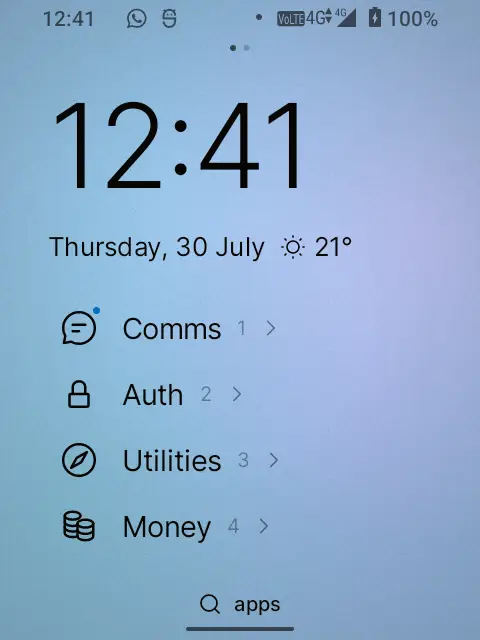
SideHome shows the time, the day, a hint of the weather, and the few apps you actually reach for, then gets out of the way. The background is alive with the real light outside, so you sense the time of day before you have read the clock. And because the SP-01 is a keypad phone, every part of it can be driven by the keys without touching the screen at all.
What it does
- A day-following ambient sky: one continuous OKLCH colour field that tracks the sun for your location and drifts through dawn, day, dusk and night. It holds still between shifts, so an idle home costs almost nothing in battery.
- A calm home page. A large clock, the date with a one-line weather glance, and up to four favourites as a text-and-glyph list. Tap the clock to open the clock app.
- Editing with no edit mode. Long-press a favourite to pick it up and place it, drop one onto another to make a folder, drag it off to remove it.
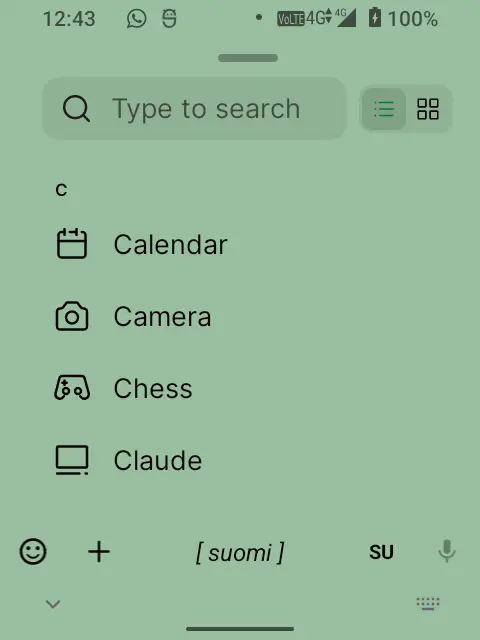
- An app library, a swipe up from home: search it with real predictive typing, or browse an A to Z list or grouped category bubbles. It remembers which you prefer.
- Folders that open in place, are managed in place, and name themselves from what is inside them.
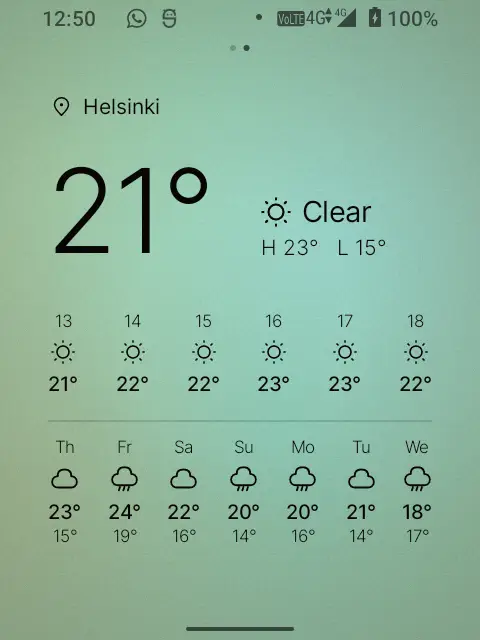
- A weather page, a swipe to the right: now, a change line such as “clearing by 11:00”, the next few hours, and the week ahead, for a place you type in. Opt-in.
- Notification dots on apps with something unread, on the home, in the library and on folders. Opt-in, off until you turn it on.
- Hardware key-navigation with no setup, on the Compact QWERTY, Sundial and T9 tiles.
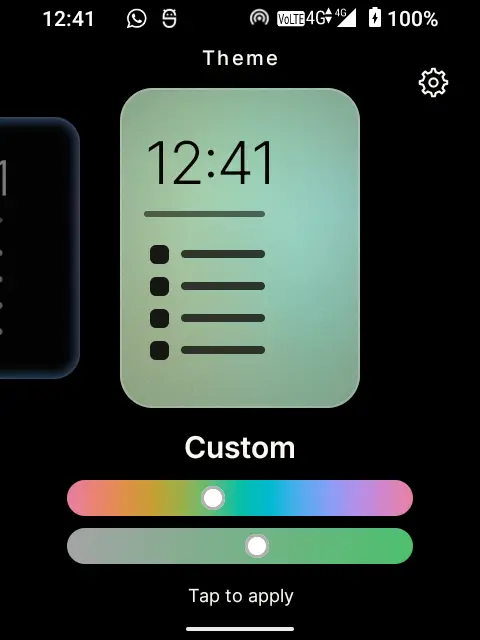
- Five themes: the live ambient sky, full light, full dark, an “edge” dark with a glowing colour rim, and a custom hue you pick yourself.
Screenshots
It knows your app names
SideHome and SideType are built by the same person, and this is where that shows.
When you type in the library, SideHome hands the moment to SideType with a private signal saying that this field is an app search. SideType then turns your launchable apps into a live prediction dictionary for that field alone. On an ambiguous two-letters-per-key tile, that means a press or two lands straight on names an ordinary word predictor would never guess: Revolut, Aegis, Obtainium.
The bias is rebuilt every time the field takes focus and dropped the moment you leave it, so your app names never bleed into ordinary typing anywhere else. With any other keyboard the field types as normal.
Driving it by the keys
The SP-01 takes swappable keypad tiles, and SideHome navigates by them with no profile to set up. The tiles emit distinct keycodes, so one unified map drives whichever one is fitted.
- Numbers are a direct index. On the T9 and Compact QWERTY tiles, the 1 to 9 markings launch the matching favourite in a single press.
- The Sundial ring works as a D-pad. Rock the ring to move, press the centre to select.
- Back and Select come from each tile: QWERTY uses its hardware Back and Enter, the Sundial uses its corners, and on T9 Back is ✱ and Select is #, because the top Call and Home row belongs to the phone.
- The Home key opens the app library from a bare home, and steps back out of anything that is open.
- It ships on and can be turned off in Settings, so it never fights an external key-mapper.
Setup
There is almost nothing to set up.
- Press Home after installing and choose SideHome as your default launcher.
- A one-time coach shows you the two swipes, up for apps and right for weather. It appears once and never again.
- Weather, if you want it: swipe right and tap “Set your location” to type a city. Nothing is fetched until you do.
- Notification dots, if you want them: long-press an empty patch of home, open the gear, choose Notification dots, and grant access on Android’s own page.
Privacy
SideHome asks Android for one permission: internet access, for the weather. That is the whole of it.
- Internet, for the weather and nothing else. The weather page fetches from Open-Meteo, two requests when what is on screen is stale. That is the only thing SideHome ever puts on the network.
- Nothing is fetched until you set a location. A phone that never sets one never touches the network at all.
- There is no location permission, and there never will be. The place is typed and geocoded rather than sensed. A city-scale forecast does not need GPS.
- Notification dots are a grant, not a request. SideHome cannot ask for them. You turn them on yourself on Android’s own notification-access page, and they are off until you do. It is the only way a launcher can know an app has something unread; the AOSP launcher takes the same path.
- While that grant is on, SideHome keeps only a set of package names in memory, the list of apps that currently have a dot. It stores no notifications, no text, titles, senders or counts, and it transmits nothing.
- Turning it off means revoking the grant on the same Android page. There is no separate switch inside SideHome, so “off” means not listening rather than granted and promising not to look.
Honestly
Two tiles are not supported yet. Key-navigation is tested on the Compact QWERTY, Sundial and T9 tiles; the Classic Keypad and the Mini Controller Keypad are not among them, so if that is the tile you use, the keys will not drive the launcher.
The ambient sky holds still between shifts rather than drifting continuously in real time. That is a choice about this hardware: repainting a full screen constantly on the Helio A22 costs battery and buys very little, so the living quality comes from the colour changing through the day rather than from motion.
For developers
SideHome is native Jetpack Compose in Kotlin, a fresh HOME activity rather than a Launcher3 fork, with minSdk 31 and built for the SP-01’s Helio A22 and its 480×640 screen.
The pure logic carries 470-odd unit tests: the colour interpolation, the gestures, the key-navigation map and the drop rules. None of it needs a device to run, and it is where being wrong shows every time you pick the phone up.
Install SideHome

The SideSuite app pack. Scan this in your phone’s Library app and all the SideSuite apps appear in your library. You choose which ones to install, and updates then arrive on their own without you tapping through anything.
Just SideHome, on its own
If you only want this one, download the signed APK from its releases and open it on the phone. You will not get update notifications this way; Obtainium is the middle option if you want those without the pack.